
The Descon portal is where your office looks after licenses, people, and renewals. Sign in with the same email and password you already use in Descon.
There is nothing extra to install, and you do not need a separate account. This page is the user guide: what you will see, who can change what, and the everyday jobs an engineering office actually does with it. Open it any time from the portal, or send the link to a colleague who is deciding whether to start using it.
On this page
Signing in
Go to desconplus.com/portal. Use the email and password you type when you open Descon. That is the whole of it.
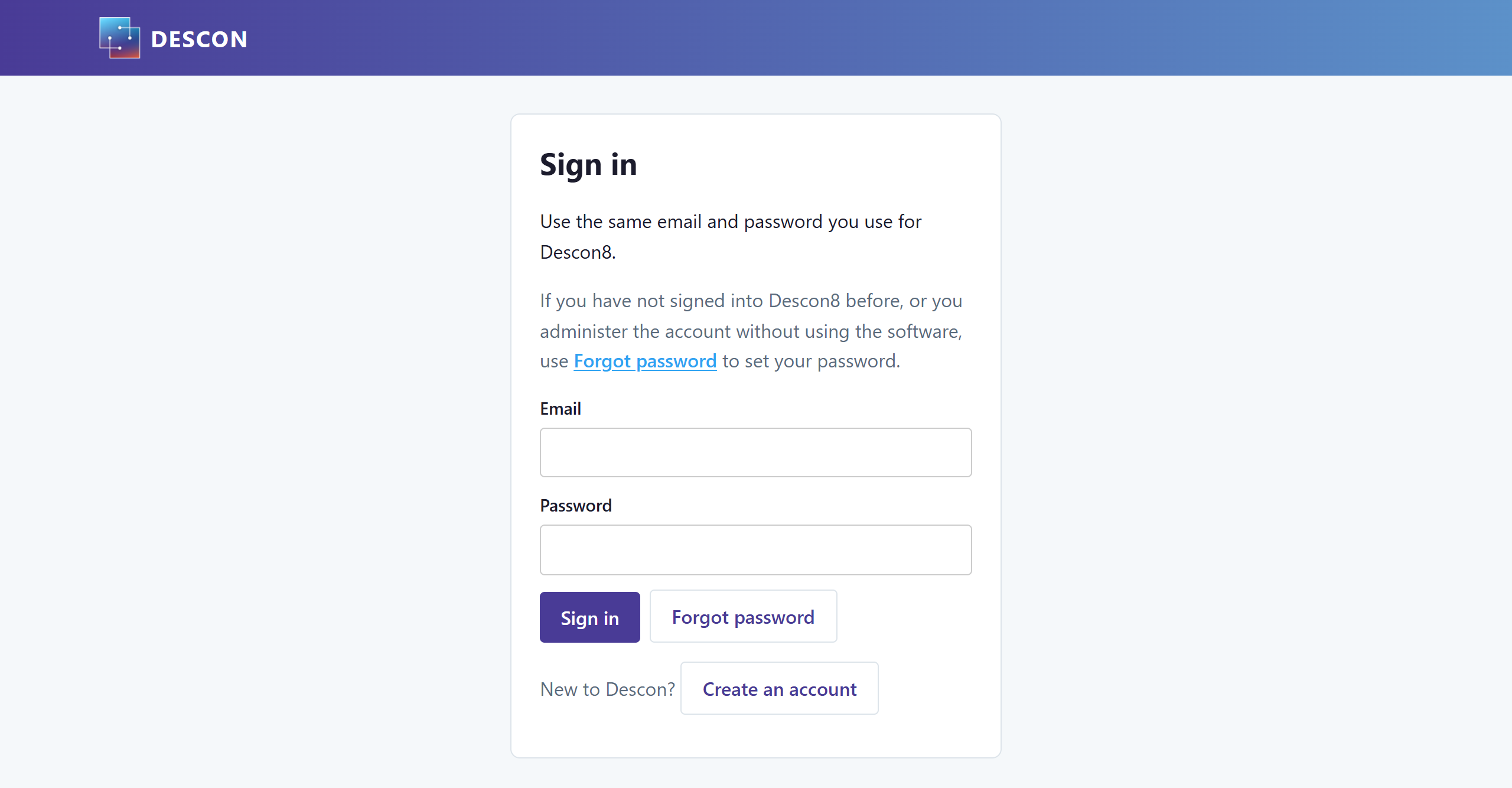
If you administer the license but do not run the software yourself — an office manager, or whoever handles invoices — you may not have a password yet. Use Forgot password. We email a code to that address; once you set a password, it works here and in Descon.
A message we send you about an invoice or a new user already signs you in when you follow the button. You do not have to remember a password for those visits.
Your license at a glance
After you sign in, the first card is the license itself: the plan, how many seats are in use, how many people have accounts, and when it renews.
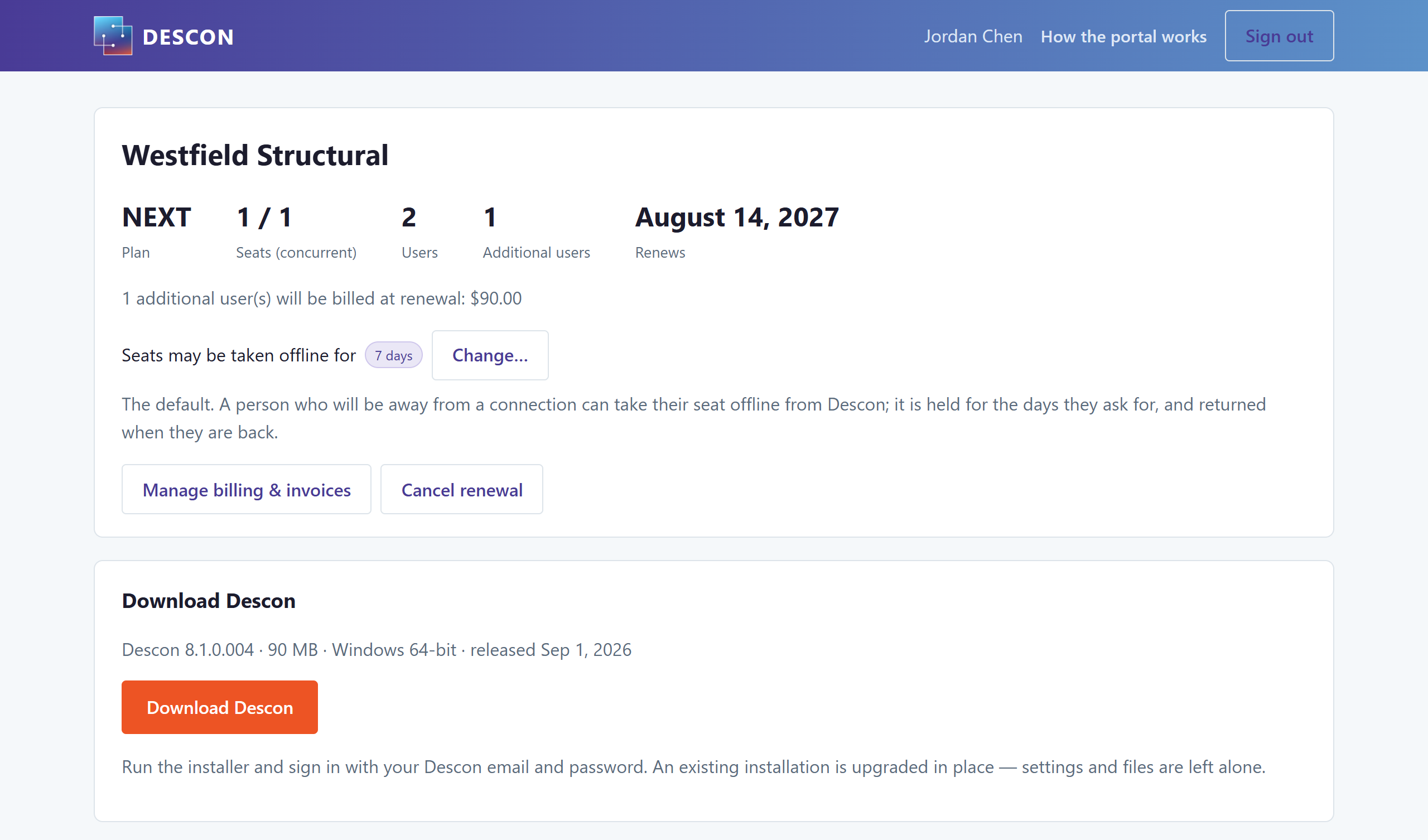
A seat is one person running Descon at a time. That is different from how many people have accounts. Two engineers can share a seat if they are not both in Descon at once. On an annual license, a second person who will take turns is an additional user; a second person who needs to run it at the same time is a second seat. On monthly billing, each person is a seat.
Each person can keep Descon on two machines — a desktop and a laptop is the usual arrangement. Both count toward seats while they are signed in. When they close Descon, the seat frees itself. If a session is left hanging after a crash or a closed laptop, it drops on its own within the hour; you do not have to do anything.
Downloading Descon
The current installer sits on the same page as the license. Run it and sign in with your Descon email and password. An existing installation is upgraded in place — settings and files are left alone.
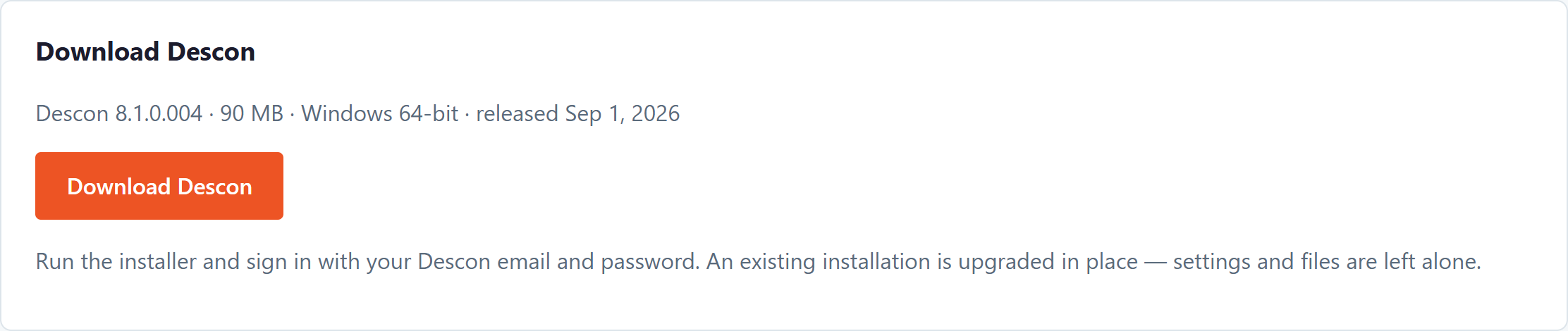
Help → Check for Updates inside Descon reaches the same place. Use whichever is in front of you.
People who run Descon
An administrator adds a colleague by email. They receive a message with the download and how to get in. Leave Email them the getting-started instructions ticked for someone new: download, install, open, log in, then the tutorials. Untick it for someone who has used Descon before and only needs the sign-in and the download.
On an annual license, choose how they are billed: an additional user shares the seats you already have and waits their turn; a seat is another concurrent login. A seat is bought outright at the first-year price for your level, which covers the rest of the current license year, and from the next renewal it is charged alongside your other seats at the renewal price. Neither is prorated, and the renewal date does not move.
If you already have additional users and want them to be able to run Descon at the same time, use Add a seat without adding a person. That raises the seat count without creating another account — one seat and one additional user becomes two seats — and from the next renewal that person is charged as a seat rather than as an additional user.
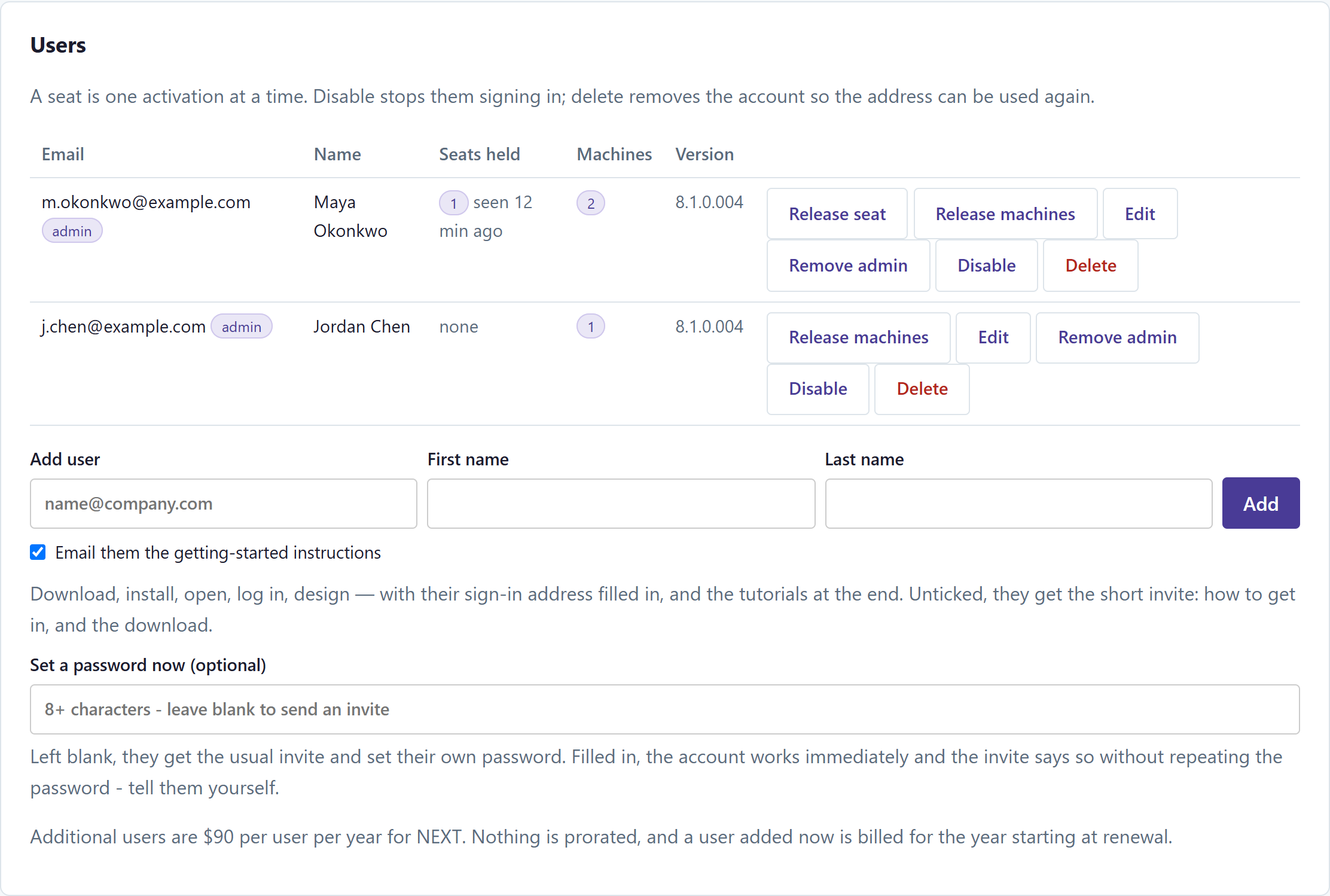
On each row:
- Release seat — they are in Descon now and you need that seat back. Rare; closing Descon usually does it.
- Release machines — a computer was retired, a dock or VPN used to consume a slot, or they have reached the two-machine limit and need to sign in somewhere new.
- Edit — name, or a password if they cannot reset it themselves.
- Make admin / Remove admin — whether this person can manage the office account.
- Disable — they cannot sign in to Descon or the portal. The address stays reserved, so you can restore them later.
- Delete — the account is removed so the address can be used again. A license always keeps at least one user, so the last account cannot be deleted: add whoever is replacing them first. Deleting frees the address rather than parking it, so putting someone back is a new, paid seat — if you only want to stop them signing in today, Disable instead.
On an annual license, an additional user is billed for the year at renewal. Adding them as a seat, or adding a seat on its own, means the next invoice charges seats instead. On monthly billing, each person needs their own seat, charged from the next invoice; adding someone part-way through the month is only the days that are left.
Administrators
Administrators manage users, machines, and billing. Someone who only appears here — an office manager, or finance — cannot open Descon and does not use a seat. That is deliberate: the person who pays the invoice is often not the person designing connections.
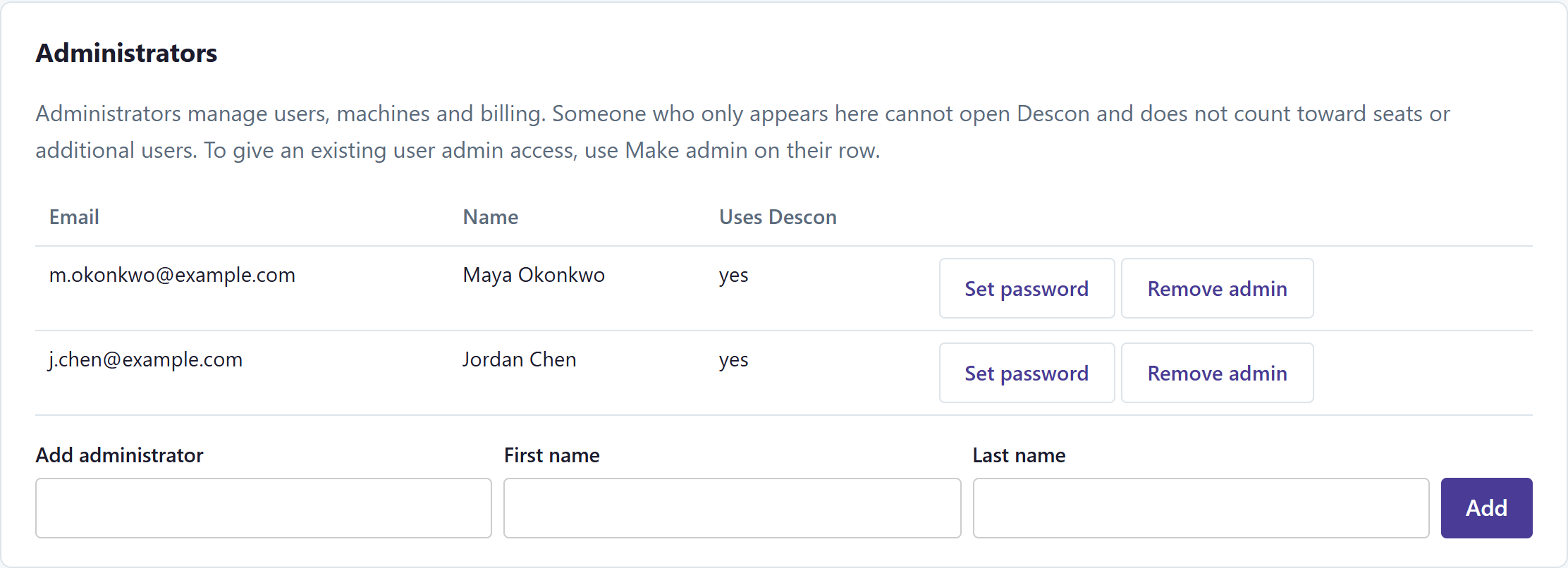
To give an existing user admin access, use Make admin on their row in Users. The add-administrator form is for someone who will never run the software.
Tick Email on new versions for anyone who should hear when we publish a build. It is off unless you turn it on. That is the option for an office that installs Descon centrally: the people who run it cannot install an update themselves, and an administrator who never opens Descon would otherwise never see the notice that appears when the software starts. The message lists how many of your people are on each version, and links to the release notes.
Billing and renewals
Manage billing & invoices is where you update the card on file and download receipts. Cancel renewal leaves the license running until its end date and stops the next charge. You can turn renewal back on any time before then.
If the license has already ended, the page says so. The date is labeled Ended, and there is nothing left to cancel. Instead you see the price to start again, the date that term covers, and a Pay … and start again button. You do not need an invoice or a card on file. Checkout takes the payment, and the license extends as soon as it is received.
Check the date before you pay. Monthly and annual work differently. Monthly always runs a month from the day you pay. Time that already passed is not billed and is not added back. Annual usually continues on the same anniversary, at the renewal price. A license that ended three months ago comes back covered through that same date next year — nine months ahead, not twelve. That is what the renewal price is for. If the license has been expired long enough that catching up would cost more than starting over, it becomes a first-year purchase that runs a full year from today.
The quote is always for the billing type you already had. To come back on the other billing type, use Ask us before you pay. The previous plan has to be stopped first, or you can end up billed on both. We will stop it and quote you the new one.
Annual licenses get a notice a month ahead and another a few days before the date. Monthly licenses get the final notice. The license extends when the payment is received, not when the invoice is raised.
Working away from a connection
From Descon’s Support tab, a person who will be away from a connection can take their seat offline for a number of days. The seat is held until that date, whether or not Descon is running. The portal is where the office sets the most days that is allowed — seven is the default.
Support requests
Everything sent from Send Feedback in Descon, or from Ask us on this page, appears here for everyone at the firm. A report carries the design that was open and the calculations that came out of it; in an engineering office those belong to the team, not only to the person who hit Send.

You can follow a report, add a reply, and see when it is fixed. If we need more from you, the status moves to that effect and, if you asked to hear, we email you.
When Descon will not let you in
The login window shows a short red message when it cannot sign you in. There is not room there for what to do next. Each heading below is the message Descon shows; then what it means, and how to clear it. Most of them are cleared in the portal by an administrator.
Maximum number of computers activated for this user.
Each person can keep Descon on two machines — a desktop and a laptop is the usual arrangement. This message means both of those slots are taken, and the computer you are on is a third. It is not that you are already signed in on this one.
An administrator signs into the portal, finds your row, and uses Release machines. Then you sign in here again. That is the step when a computer was retired, a dock or VPN used to consume a slot, or you have reached the two-machine limit and need to sign in somewhere new.
User logged into another computer.
You already have a live session on a different computer. Close Descon there and try again. If a session was left hanging after a crash or a closed laptop, it drops on its own within the hour; you do not have to do anything. If you need that seat back immediately, an administrator uses Release seat on your row.
All seats for this license are currently in use.
A seat is one person running Descon at a time. Someone else is using the last one. When they close Descon, the seat frees itself. If a session is left hanging, it drops within the hour. An administrator can Release seat on that person’s row, add another user if a second person needs to run Descon at the same time, or on an annual license add a seat without adding a person if that colleague already has an account.
Company license expired.
The license end date has passed. An administrator signs in to the portal. The account page shows the price to start again and the date it runs through, with a Pay … and start again button. No invoice or saved card is needed. The license extends as soon as the payment is received. The same message appears if a free trial on this machine has ended.
The license administrator has deactivated this login.
This account was disabled. An administrator can restore it from the Users list, or Ask us on the portal.
Not a matching e-mail/password combination.
The email or the password is wrong. The account is keyed on the address whoever created it typed, which is not always the one you would have chosen. Use Set or Reset Password on the login window, or Forgot password on the portal. Both set the same password for Descon and the portal.
Could not contact license server.
Descon could not reach the license service. Check the network connection and try again in a few minutes. The same applies if the message is a license server error. If it keeps happening, email support@desconplus.com — a firewall or proxy is the usual cause.
Common questions
Do I need a different password for the portal?
No. The password you use in Descon is the password here.
I only handle billing. Can I still use the portal?
Yes. Add that address as an administrator. They will not be able to open Descon and they do not use a seat.
Our office installs Descon for everyone. How do we hear about a new version?
On the Administrators list, tick Email on new versions for anyone who should be told when we publish a build. It is off unless you turn it on. The message lists how many of your people are on each version, and links to the release notes.
A colleague left and we need the license back.
Disable their account. That stops them signing in. If you want the email address for someone new, Delete it first, then add the new person.
Descon will not let me in.
The red message on the login window is explained under When Descon will not let you in.
Descon says it is in use on another machine.
That is a live session on a different computer. Close Descon there, or wait — a session left hanging drops within the hour. If you need the seat back immediately, use Release seat on their row.
Descon says the maximum number of computers is activated.
Each person can keep Descon on two machines. On their row, use Release machines, then they sign in on the computer they need.
We want another engineer to run Descon at the same time.
On annual, add them as a seat rather than as an additional user. If they already have an account, use Add a seat without adding a person — that turns an additional user into concurrent capacity, and the next renewal charges two seats instead of a seat plus an additional-user fee. On monthly, adding a user is another seat on the next invoice. The portal tells you the amount before you confirm.
Who can I ask if this page does not cover it?
Ask us on the portal, or email support@desconplus.com. We are the same people who answer design questions.
For the connections themselves — every connection on a job in one file — see Using Descon Projects.